Music Assistant plays the music.
ParlorWave runs the station.
ParlorWave Radio turns a Music Assistant installation into a home radio station: your albums, your playlists, and your queue—with a DJ talking between the tracks. It calls the time, mentions the weather, introduces what is coming next, airs recorded news bulletins each hour at the minute you choose, and puts a five-screen broadcast console in your Home Assistant sidebar.
Every setting belongs to one of five screens.
Once installed, ParlorWave Radio adds one panel to your Home Assistant sidebar with five screens—each answering a specific question about your station.
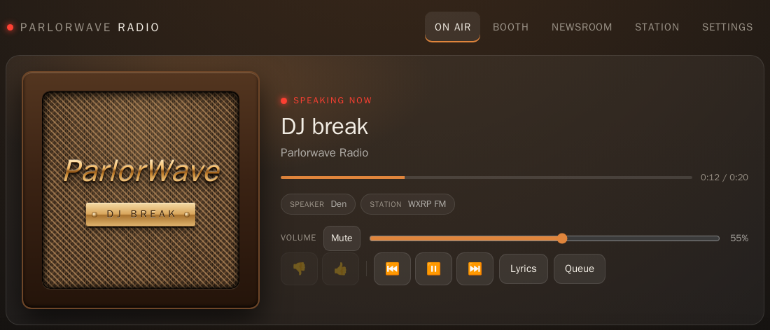
What is playing, and what is my station doing?
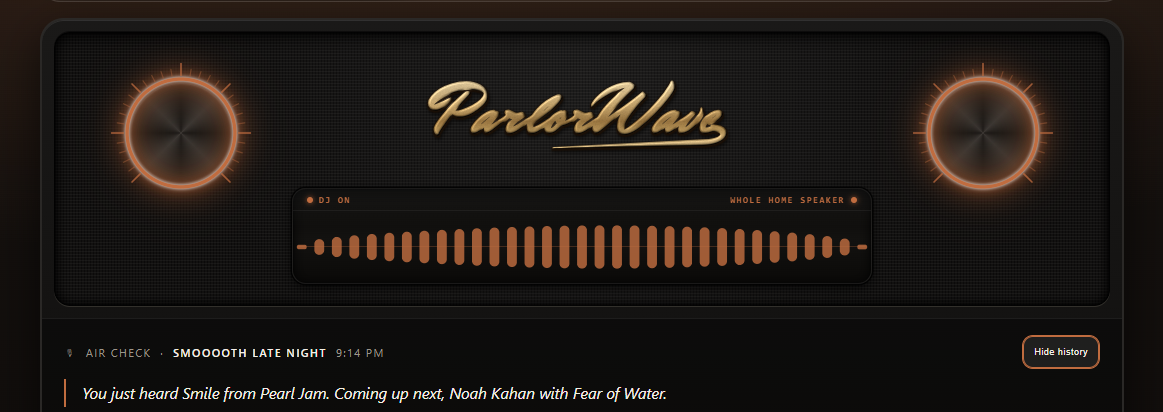
On Air shows live playback and broadcast state alongside the Broadcast Console: a recessed speaker grille cloth, raised ParlorWave wordmark, two rotary controls, a waveform display driven by Music Assistant’s analysed waveform for the playing track (when available), and the Air Check transcript log.
- Rotary Controls: Turn the left knob for volume or double-push for DJ on/off. Turn the right knob to tune your saved Dial presets, or double-push to switch the active DJ speaker.
- Lyrics & Queue: Follow active lyrics inside the lyric pane and inspect the upcoming queue and break history.
What should my station sound like?
Booth shapes your host’s voice, daypart shifts, and break cadence—plus six personalities (Dry Wit, Classic FM, Late Night, Sarcastic, Humorous, or Energetic) for the optional AI writer. Without a model, the built-in deterministic writer uses one consistent house style.
- Home Assistant Voices Out of the Box: Uses your existing Home Assistant
tts.*voices right away (such as local Piper or Home Assistant Cloud); a voice you pick is checked with a test phrase before it goes on air. - Automatic DJ Shifts: Optional Morning (05:00–12:00), Afternoon (12:00–17:00), and Night (17:00–05:00) voice assignments.
- Break Style & Cadence: Set break length (short, normal, or long), minimum minutes between breaks (12 minutes by default), and weather/calendar toggles—or turn off Speak DJ breaks to silence between-song hosting while keeping announcements active.
- Optional Custom Voices: Connect a Chatterbox-compatible voice engine you run yourself (under Settings → Optional services) to create up to three custom DJ voices from 10–30 second browser recordings or audio files, with recorded permission and saved recording management.
Select any Home Assistant tts.* entity and audition it in your browser before putting it on the air.
Optional Morning, Afternoon, and Night voice assignments that hand off automatically across the day.
Adjust minimum minutes between breaks (1–240 min), break word budget, and weather/calendar context toggles.
Up to 3 custom voice slots with consent confirmation and up to 50 saved reference clips when paired with a Chatterbox engine.
What does it say about the world?
Newsroom airs scheduled MP3 audio bulletins from up to eight podcast or radio news RSS feeds you supply.
- Multiple Feeds & Schedules: Configure up to 8 MP3 audio RSS sources (30 seconds to 30 minutes per episode), each with its own minute past the hour (
:00,:05…:55; default:30), feed test, and airing history. - Song-Boundary Delivery: A due bulletin waits for the current track to finish, owns its boundary, and plays together with its station intro—or airs on its own if Music Assistant shuffle separates them.
- Listen Again in Browser: Replay recent bulletins in your browser without putting news back into the speaker queue.
Schedule each MP3 RSS feed at any 5-minute mark (:00–:55) and test the feed before enabling.
Only episodes up to 90 minutes old at airtime are played, and due bulletins take priority over regular DJ breaks.
Inspect recent airings for each source and play back the latest bulletin directly in your browser.
Where does my music come from?
Station manages music programming and household announcements. By default, ParlorWave Radio follows whatever you play in Music Assistant—inserting finite DJ breaks and news bulletins between songs without reordering your queue.
- The Station Programmer: Name a station (such as 90s Rock, an artist, or a decade) and ParlorWave programs it from Music Assistant’s own library on a single speaker you choose. Use Test Station for a dry run, save up to 12 Dial presets, or start a station from the typed Request Line builder.
- Station Queue Rules: Starting a station appends tracks to that speaker’s queue (the speaker must already be playing or paused, ungrouped, with 5 or fewer songs queued) and turns off Music Assistant Autoplay there. Stations play on a speaker of your choice; the DJ hosts the Active DJ speaker.
- Station Name & Frequency: Name your station (include an FM frequency like
99.9in the name and the DJ speaks it radio-style as “ninety-nine point nine”). - Calendar Announcements: Inspect upcoming scheduled announcements, what aired (with spoken text), and what expired unaired.
Save up to 12 named presets or type an artist, genre, or decade into the Request Line station builder—no LLM required.
Automatically removes ParlorWave’s own spent break and bulletin items while leaving your Music Assistant songs untouched.
Displays Coming up (up to 8), Last aired (with exact spoken copy), and Didn’t air lists for your bound Home Assistant calendars.
Is it ready, and what is connected?
Settings states in one line whether your installation is ready, and routes you directly to wherever any missing step is configured.
- Allowed DJ Speakers: Choose which Music Assistant outputs ParlorWave Radio may DJ on directly from a card on Settings.
- Test Weather & Test Calendar: Inspect what the station can actually see from your Home Assistant entities and why each reading or event would or would not reach a DJ break.
- Optional Services (Extras): Connect an optional Ollama writing model you run yourself, or a Chatterbox-compatible voice engine, each with a bounded Test Connection.
Verifies app connection, Music Assistant token, Allowed DJ speakers, and TTS voice status at a glance.
Explicit allowlist diagnostics that never log or export API keys, tokens, or private credentials.
Four essentials. Two pieces to install.
ParlorWave Radio requires four things and nothing else—no GPU, no language model, no local music catalog, and no cloud account. It installs as a Home Assistant OS app (add-on) followed by the integration.
Home Assistant OS
Home Assistant OS, 2026.9 or newer, on amd64 or aarch64 (aarch64 not yet tested on a physical Raspberry Pi).
Music Assistant
Required on the same Home Assistant OS machine. Owns your music library, streaming providers, queues, and players.
Home Assistant TTS Voice
Any tts.* voice in Home Assistant—pick Piper in Booth for fully local speech.
The Built-In Writer
Included out of the box—writes every break on your machine with no model to install.
Install & Start the App
- In Home Assistant open Settings → Apps → Install app → ⋮ → Repositories (called Add-ons before HA 2026.2) and add:https://github.com/parlorwave/parlorwave-radio-addon
- Find ParlorWave Radio in the store, click Install (a prebuilt image is downloaded), and click Start.
- In Music Assistant open Settings → Profile and, under Long-lived access tokens, create a token. A Home Assistant token will not work.
- Paste that token into the app’s Configuration tab and restart the app. The default URL
http://homeassistant:8095is the Music Assistant app on the same machine. That is the only setup supported in this alpha.
Install & Confirm the Integration
- In HACS → ⋮ → Custom repositories, add with type Integration:https://github.com/parlorwave/parlorwave-radioHACS may show a commit ID instead of
0.1.0-alpha.3because this is a pre-release. Without HACS: download the zip from the v0.1.0-alpha.3 release and copycustom_components/parlorwave_radiointoconfig/custom_components/. - Download ParlorWave Radio and restart Home Assistant.
- Open Settings → Devices & services. ParlorWave Radio appears as Discovered—press Configure and confirm (no host, port, or key to type).
- Open ParlorWave Radio in your sidebar, pick your allowed DJ speakers on Settings, turn the DJ switch on in On Air, and start music in Music Assistant. Your first DJ break comes about 12 minutes after music starts (lower Minimum minutes between breaks in Booth to hear one sooner). On Air shows when the next one is due.
- Optional: in Booth, pick the DJ’s voice (choose Piper for fully local speech). Under Settings → Devices & services → ParlorWave Radio → Configure, choose a weather entity and calendars.
Keep the app and integration on the same version (0.1.0-alpha.3). If they differ, Home Assistant’s Repairs screen shows both versions; update the one that is behind.
Need help? Check the one-line readiness verdict on Settings or see the Troubleshooting table in the README.
How ANNOUNCE and ANNOUNCE EXACT work.
Choose your calendars under Settings → Devices & services → ParlorWave Radio → Configure. Announcements are on by default, and the Station screen shows what is scheduled, what aired, and what didn’t. Any event whose title begins with ANNOUNCE airs at most once per occurrence, at the first song change after its start time while music is playing on a DJ speaker, with or without the DJ or a writing model. If it can’t air within 40 minutes (adjustable), it is skipped and shown as not aired. Announcements are not exact-time alarms. Ordinary all-day calendar events can also be mentioned once by the DJ in regular breaks on their day or the day before.
Airs at the first song change after the start time while music is playing. Your wording is tidied for speech (5p-10p becomes 5 PM to 10 PM, $11.99 becomes 11 dollars and 99 cents); the event’s own time isn’t read out. Needs a start time: all-day ANNOUNCE events don’t air.
Airs at the first song change after its start time while music is playing and speaks the text after ANNOUNCE EXACT word for word (up to 500 characters). Add voice: <name> in the calendar event’s description to have a specific announcement-authorized voice read it (works with plain ANNOUNCE too; if that voice can’t speak, the default announcement voice reads it).
What to know before installing.
0.1.0-alpha.3 is an early public alpha, and its current boundaries are documented plainly so you know what is and isn’t in this release:
https; otherwise upload a WAV, MP3, or FLAC file.aarch64 image was built under QEMU emulation and has not yet been tested on a physical Raspberry Pi. The app-store update path is not yet rehearsed (take a Home Assistant backup before updating). Pandora sources are not qualified, and listening to the full station stream in the browser is not in this release.